Overview
3Guide is an AI-first digital adoption platform for B2B SaaS. It ships as two complementary bundles: the Full SDK (guideai.js) for interactive guides, AI chat, browser copilot, and the floating bubble; and the Tracking SDK (guideai-tracking.js) for friction analytics, detection, surveys, announcements, and session recording.
In-App Guides
AI-generated interactive walkthroughs with 6-tier fingerprinting that auto-heals when your UI changes.
Browser Copilot
Always-on AI assistant powered by RAG and your scanned knowledge base. Answers questions and walks users through tasks.
Friction Analytics
Detect rage clicks, dead clicks, and hesitation. 30+ auto-emitted events with PII stripping and AES-256-GCM encryption.
3Guide Platform Overview
Full walkthrough of the 3Guide platform — from installation to creating your first guide.
TODO: Record and upload video, then replace videoIdFull walkthrough of the 3Guide platform — from installation to creating your first guide.
3Guide architecture — SDK, Scanner CLI, Dashboard, Browser Copilot, and Backend working together.
Platform architecture
Full SDK (guideai.js) — Guides, AI chat, browser copilot, floating bubble, segmentation, and deep UI analyzer. Handles guide playback, recording, and LLM-powered walkthroughs.
Tracking SDK (guideai-tracking.js) — Friction analytics, all detection modules (rage clicks, dead clicks, form tracking), help hints, announcements, NPS/CSAT surveys, feedback, chips, and session recording. No bubble, chat, guides, or copilot.
Scanner CLI — Analyzes your codebase to build a knowledge base of routes and elements. Supports 8+ frameworks.
Dashboard — Admin UI for creating guides, viewing analytics, managing settings, and accessing API keys.
Chrome Extension — Visual guide builder with element picker and live recording overlay.
Choose Your Bundle
3Guide ships two separate bundles. Pick the one that matches your needs.
Full SDK
guideai.jsInteractive guides, AI chat, browser copilot, and the floating bubble. For guide-based onboarding, copilot assistance, and visual walkthroughs.
Includes
- Interactive guide playback
- AI browser copilot & chat
- Floating bubble (drift / crawl)
- Guide recording & authoring
- Deep UI analyzer
- Knowledge base loading
- Segmentation & targeting
- NPS & CSAT surveys
Not included
- -Rage / dead click detection
- -Form & scroll tracking
- -Error & performance tracking
- -Help hints & announcements
- -Session recording
- -Feedback prompts
<script
  src="https://cdn.3guideai.com/sdk/guideai.js"
  data-site-id="site_YOUR_SITE_ID"
  data-token="pk_live_YOUR_TOKEN"
></script>
Tracking SDK
guideai-tracking.jsAnalytics-only bundle. All tracking, detection, and engagement UI without the guide/chat/copilot overhead.
Includes
- Full event tracking & detection
- Rage click / dead click detection
- Help hints & announcements
- NPS & CSAT surveys
- Feedback prompts
- Chips (contextual nudges)
- Session recording
- Feature flag support
Not included
- -Floating bubble
- -AI chat & copilot
- -Guide playback
- -Guide recording
- -Resource center
- -Support chat
<script
  src="https://cdn.3guideai.com/sdk/guideai-tracking.js"
  data-site-id="site_YOUR_SITE_ID"
  data-token="pk_live_YOUR_TOKEN"
></script>
Which bundle should I use?
Use the Full SDK if you want interactive guides, AI chat, the floating bubble, or browser copilot. It focuses on guide-based onboarding and AI assistance — it does not include friction analytics or detection modules.
Use the Tracking SDK if you need friction analytics, rage/dead click detection, form tracking, error monitoring, session recording, surveys, and announcements — without any guide overlay or chat. Guide-related methods (showGuideById, dismissGuide, startRecording, etc.) are available as no-ops so you can switch bundles without changing your code.
Use both together if you want the full experience — add both script tags and get guides + copilot + analytics + detection. Both bundles expose window.guideai and use the same stub loader pattern.
Bundle comparison
| Feature | Full SDK | Tracking SDK |
|---|---|---|
| Guide playback | — | |
| AI chat & copilot | — | |
| Floating bubble (drift / crawl) | — | |
| Guide recording & authoring | — | |
| Deep UI analyzer | — | |
| Knowledge base loading | — | |
| Segmentation & targeting | — | |
| NPS & CSAT surveys | ||
| Chips (contextual nudges) | ||
| Basic session events | — | |
| Full event tracking & batching | — | |
| Rage / dead click detection | — | |
| Form tracking | — | |
| Scroll & engagement tracking | — | |
| Error & performance tracking | — | |
| Session recording | — | |
| Help hints | — | |
| Announcements | — | |
| Feedback prompts | — | |
| Feature flags | — |
1) Install the SDK on your website
Get 3Guide running on your site in three steps.
Quick Start Tutorial
Install the SDK, scan your codebase, and deploy your first guide.
TODO: Record and upload video, then replace videoIdInstall the SDK, scan your codebase, and deploy your first guide.
Scan your project
Run the scanner against your codebase to build your knowledge base. The scanner auto-detects your framework.
npx guideai-scan --key sk_live_YOUR_KEY --dir ./my-app
Terminal output after running the scanner CLI on a Next.js project.
Add the CDN script to your site
Paste one of these script tags before </body> in your HTML. No npm install or build step required.
Full SDK — guides, chat, copilot, and bubble:
<script
  src="https://cdn.3guideai.com/sdk/guideai.js"
  data-site-id="site_YOUR_SITE_ID"
  data-token="pk_live_YOUR_TOKEN"
></script>
Tracking SDK — friction analytics, detection, surveys, and announcements:
<script
  src="https://cdn.3guideai.com/sdk/guideai-tracking.js"
  data-site-id="site_YOUR_SITE_ID"
  data-token="pk_live_YOUR_TOKEN"
></script>Identify your users (optional)
Pass visitor and account info so guides can be personalized and targeted.
window.guideai.initialize({
  visitor: {
    id: "user_123",
    email: "jane@acme.com",
    full_name: "Jane Doe",
    role: "admin",
  },
  account: {
    id: "acme_456",
    name: "Acme Corp",
    planLevel: "pro",
    is_paying: true,
    monthly_value: 299,
  },
});
That's it. With the Full SDK, users will see the floating help bubble, receive in-app guides, and have access to AI chat. With the Tracking SDK, friction analytics, detection, surveys, and announcements start working immediately. Use both together for the complete experience.
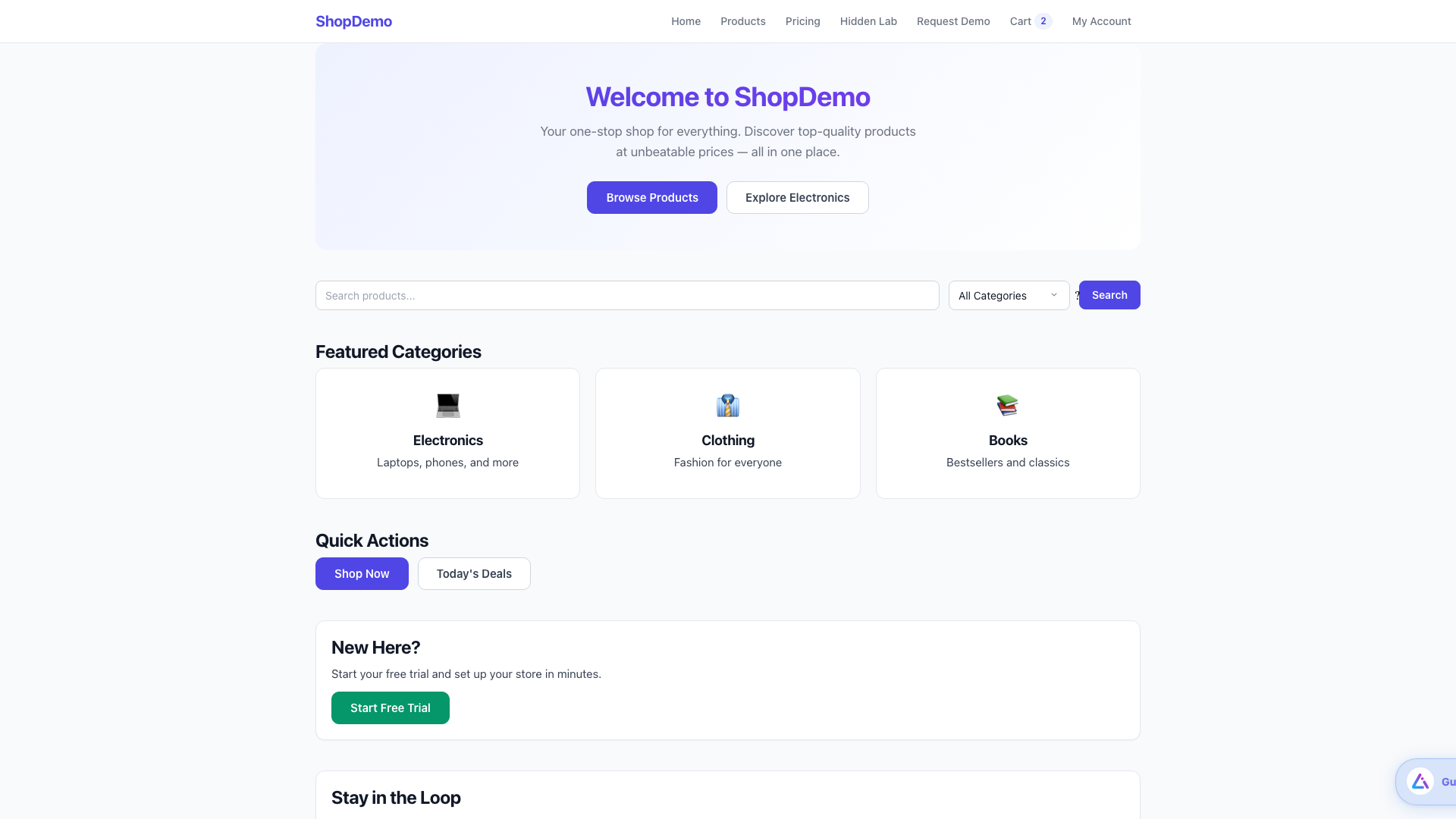
The 3Guide bubble appearing on a live site after installation.
Add the CDN
Both bundles are delivered via CDN as IIFE scripts. No npm install or build step required. Just two required attributes on the script tag.
Basic script tag
Choose the bundle that fits your use case.
Full SDK (guides + chat + copilot + bubble):
<script
  src="https://cdn.3guideai.com/sdk/guideai.js"
  data-site-id="site_YOUR_SITE_ID"
  data-token="pk_live_YOUR_TOKEN"
></script>
Tracking SDK (analytics-only):
<script
  src="https://cdn.3guideai.com/sdk/guideai-tracking.js"
  data-site-id="site_YOUR_SITE_ID"
  data-token="pk_live_YOUR_TOKEN"
></script>
Async stub loader (non-blocking)
Use this snippet to load either bundle without blocking page render. It creates window.guideai immediately and queues method calls until the full script loads. Both bundles use the same stub pattern.
Full SDK async loader:
<script>
(function(siteId, publicToken, apiUrl, cdnUrl){
  (function(p, e, n, d){
    var v, w, x, o;
    o = p[d] = p[d] || {};
    o._q = o._q || [];
    o._loaded = false;
    v = ['initialize','identify','updateOptions','pageLoad',
         'markFeature','showGuideById','dismissGuide',
         'validateGuideById','on','destroy','flushNow',
         'clearSession','startRecording','stopRecording',
         'cancelRecording','saveGuide',
         'showNPSSurvey','showCSATSurvey'];
    for (w = 0, x = v.length; w < x; ++w) (function(m){
      o[m] = o[m] || function(){
        o._q[m === 'initialize' ? 'unshift' : 'push'](
          [m].concat([].slice.call(arguments, 0))
        );
      };
    })(v[w]);
    var y = e.createElement(n);
    y.async = true;
    y.src = (cdnUrl || 'https://cdn.3guideai.com') + '/sdk/guideai.js';
    y.setAttribute('data-site-id', siteId);
    y.setAttribute('data-token', publicToken);
    if (apiUrl) y.setAttribute('data-api-url', apiUrl);
    var z = e.getElementsByTagName(n)[0];
    z.parentNode.insertBefore(y, z);
  })(window, document, 'script', 'guideai');
})(
  'site_YOUR_SITE_ID',
  'pk_live_YOUR_TOKEN',
  undefined, // apiUrl (optional)
  undefined  // cdnUrl (optional)
);
</script>
Tracking SDK async loader:
<script>
(function(siteId, publicToken, apiUrl, cdnUrl){
  (function(p, e, n, d){
    var v, w, x, o;
    o = p[d] = p[d] || {};
    o._q = o._q || [];
    o._loaded = false;
    v = ['initialize','identify','updateOptions','pageLoad','track',
         'trackFeature','markFeature','on','destroy','flushNow',
         'clearSession','showNPSSurvey','showCSATSurvey'];
    for (w = 0, x = v.length; w < x; ++w) (function(m){
      o[m] = o[m] || function(){
        o._q[m === 'initialize' ? 'unshift' : 'push'](
          [m].concat([].slice.call(arguments, 0))
        );
      };
    })(v[w]);
    var y = e.createElement(n);
    y.async = true;
    // NOTE: Use guideai-tracking.js for tracking-only
    y.src = (cdnUrl || 'https://cdn.3guideai.com') + '/sdk/guideai-tracking.js';
    y.setAttribute('data-site-id', siteId);
    y.setAttribute('data-token', publicToken);
    if (apiUrl) y.setAttribute('data-api-url', apiUrl);
    var z = e.getElementsByTagName(n)[0];
    z.parentNode.insertBefore(y, z);
  })(window, document, 'script', 'guideai');
})(
  'site_YOUR_SITE_ID',
  'pk_live_YOUR_TOKEN',
  undefined, // apiUrl (optional)
  undefined  // cdnUrl (optional)
);
</script>
Full SDK — all optionsguideai.js
The Full SDK script tag with every available attribute.
<script
  src="https://cdn.3guideai.com/sdk/guideai.js"
  data-site-id="site_abc123"
  data-token="pk_live_xyz789"
  data-api-url="https://api.3guideai.com"
  data-cdn-url="https://cdn.3guideai.com"
  data-bubble-enabled="true"
  data-bubble-position="bottom-right"
  data-bubble-icon="robot"
  data-bubble-mode="drift"
  data-bubble-label=""
  data-widget-mode="guide"
  data-guides-enabled="true"
  data-auto-advance-on-target-click="true"
  data-chip-dismiss-seconds="300"
  data-theme-primary="#6366f1"
  data-theme-background="#ffffff"
  data-theme-text="#111827"
  data-theme-font="Inter"
></script>
Tracking SDK — all optionsguideai-tracking.js
The Tracking SDK script tag with every available attribute.
<script
  src="https://cdn.3guideai.com/sdk/guideai-tracking.js"
  data-site-id="site_abc123"
  data-token="pk_live_xyz789"
  data-api-url="https://api.3guideai.com"
  data-cdn-url="https://cdn.3guideai.com"
  data-recording="true"
  data-idle-timeout="20000"
  data-session-timeout-ms="1800000"
  data-batch-size="50"
  data-batch-interval-ms="30000"
  data-geolocation="off"
  data-help-hints="true"
  data-feedback-auto-prompt="true"
  data-feedback-prompt-delay-ms="300000"
  data-feedback-prompt-min-pageviews="10"
  data-announcement-surface="modal"
  data-announcement-frequency="once"
  data-announcement-display-mode="auto"
  data-announcement-auto-show-delay-ms="500"
  data-chip-dismiss-seconds="300"
  data-theme-primary="#6366f1"
  data-theme-background="#ffffff"
  data-theme-text="#111827"
  data-theme-font="Inter"
></script>
Single-page apps (React, Vue, Angular)
The SDK auto-detects route changes in SPAs via the History API and MutationObserver. If you use custom routing you can trigger page loads manually:
// Manual page_view for custom routing
window.guideai.pageLoad("/dashboard/settings");
Next.js example
Swap guideai.js for guideai-tracking.js if you only need tracking.
// app/layout.tsx
import Script from "next/script";

export default function RootLayout({ children }) {
  return (
    <html>
      <body>
        {children}
        {/* Full SDK — or use guideai-tracking.js for tracking-only */}
        <Script
          src="https://cdn.3guideai.com/sdk/guideai.js"
          data-site-id="site_YOUR_SITE_ID"
          data-token="pk_live_YOUR_TOKEN"
          strategy="afterInteractive"
        />
      </body>
    </html>
  );
}
React (Vite / CRA) example
<!-- index.html -->
<!DOCTYPE html>
<html>
  <head>
    <title>My App</title>
  </head>
  <body>
    <div id="root"></div>
    <script type="module" src="/src/main.tsx"></script>
    <script
      src="https://cdn.3guideai.com/sdk/guideai.js"
      data-site-id="site_YOUR_SITE_ID"
      data-token="pk_live_YOUR_TOKEN"
    ></script>
  </body>
</html>
Vue / Nuxt example
// nuxt.config.ts
export default defineNuxtConfig({
  app: {
    head: {
      script: [
        {
          src: "https://cdn.3guideai.com/sdk/guideai.js",
          "data-site-id": "site_YOUR_SITE_ID",
          "data-token": "pk_live_YOUR_TOKEN",
          defer: true,
        },
      ],
    },
  },
});
Plain HTML example
<!DOCTYPE html>
<html>
  <head>
    <title>My Website</title>
  </head>
  <body>
    <h1>Welcome</h1>

    <!-- Add before closing body tag -->
    <script
      src="https://cdn.3guideai.com/sdk/guideai.js"
      data-site-id="site_YOUR_SITE_ID"
      data-token="pk_live_YOUR_TOKEN"
    ></script>
  </body>
</html>
CDN Installation Walkthrough
Step-by-step video showing how to add the 3Guide CDN to different frameworks (Next.js, React, Vue, HTML).
TODO: Record and upload video, then replace videoIdStep-by-step video showing how to add the 3Guide CDN to different frameworks (Next.js, React, Vue, HTML).
Scanner CLI
The scanner (@guideai/scanner) analyzes your codebase and uploads a knowledge base to 3Guide. It parses your JSX/TSX with Babel, extracts routes and interactive elements, and generates 6-tier fingerprints.
Scanner CLI Deep Dive
Learn how to scan your codebase, understand the output, and use dry-run mode for testing.
TODO: Record and upload video, then replace videoIdLearn how to scan your codebase, understand the output, and use dry-run mode for testing.
Install & run
# Run with npx (no install)
npx guideai-scan --key sk_live_YOUR_KEY --dir ./my-app

# Or install globally
npm install -g @guideai/scanner
guideai-scan --key sk_live_YOUR_KEY --dir ./my-app
CLI options
| Flag | Required | Default | What it does |
|---|---|---|---|
--key | Yes* | — | Your site API key (sk_live_*). Not needed with --dry-run. |
--dir | No | cwd | Path to your project root. |
--api-url | No | https://cdn.3guideai.com | 3Guide API endpoint. |
--dry-run | No | false | Output scan result as JSON without uploading. |
--output | No | — | Write the scan result to a file. |
Supported frameworks
The scanner auto-detects your framework from package.json and directory structure. No config needed.
Dry run (preview without uploading)
npx guideai-scan --dir ./my-app --dry-run --output scan-result.json
Scanner dry-run JSON output showing detected routes, elements, and fingerprints.
Scan output structure
{
  "framework": "nextjs-app-router",
  "routes": [
    {
      "path": "/dashboard",
      "page_title": "Dashboard",
      "component_name": "Dashboard",
      "dynamic_segments": [],
      "auth_required": false,
      "headings": ["Dashboard", "Analytics"]
    }
  ],
  "ui_map": { /* hierarchical component tree */ },
  "duration_ms": 1234
}
Vite plugin (auto-scan on build)
// vite.config.ts
import { guideaiPlugin } from "@guideai/scanner/plugins/vite";

export default defineConfig({
  plugins: [
    guideaiPlugin({
      key: process.env.GUIDEAI_KEY,
    }),
  ],
});
Webpack plugin
// webpack.config.js
const { GuideAIWebpackPlugin } = require("@guideai/scanner/plugins/webpack");

module.exports = {
  plugins: [
    new GuideAIWebpackPlugin({
      key: process.env.GUIDEAI_KEY,
    }),
  ],
};
Dashboard
The 3Guide dashboard is where you manage guides, view analytics, configure settings, and access your API keys.
Dashboard Tour
Complete tour of the 3Guide dashboard — manage guides, view analytics, configure settings, and access API keys.
TODO: Record and upload video, then replace videoIdComplete tour of the 3Guide dashboard — manage guides, view analytics, configure settings, and access API keys.
Getting your API keys
Navigate to Settings → API Keys to find:
site_*— Your site ID (used in the script tag)pk_live_*— Public token (safe for client-side, used in script tag)sk_live_*— Secret key (server-side only, used for Scanner CLI)
Dashboard Settings page showing where to find your site ID, public token, and secret key.
Managing guides
The Guides section lets you create, edit, publish, and archive guides. You can set targeting rules, audience segments, and trigger conditions (manual, auto, URL match, element click).
Guide management view — create, edit, publish, and set targeting rules.
Viewing analytics
The Analytics section shows guide completion rates, friction points, funnel analysis, and session recordings.
Analytics dashboard showing guide completion rates, funnel drop-off, and friction detection.
2) Public API (what you can call)
Both bundles are configured via data-* attributes on the script tag. Each bundle only reads the attributes relevant to its features. Sections below are labeled with the bundle they apply to.
Required attributes
| Attribute | Type | What it does |
|---|---|---|
data-site-id | string | Your site/workspace identifier from the dashboard. |
data-token | string | Public API token (starts with pk_live_). Also used to derive the AES-256-GCM encryption key. |
Endpoints
| Attribute | Default | What it does |
|---|---|---|
data-api-url | https://cdn.3guideai.com | Backend API URL (override for self-hosted). |
data-cdn-url | https://cdn.3guideai.com | CDN base URL for knowledge base and asset loading. |
Bubble (floating button)Full SDK only
These attributes only apply to the Full SDK (guideai.js). The Tracking SDK does not render a bubble.
| Attribute | Default | Options | What it does |
|---|---|---|---|
data-bubble-enabled | true | true / false | Show or hide the floating bubble. |
data-bubble-position | bottom-right | bottom-right, bottom-left | Which corner the bubble sits in. |
data-bubble-icon | robot | robot, ant, owl, fox, cat, bee, spark | The mascot icon on the bubble. |
data-bubble-image | — | URL (GIF/PNG) | Custom image that overrides the icon. |
data-bubble-mode | drift | drift, crawl | Animation style. Drift = smooth float, Crawl = edge walking. |
data-bubble-label | "" | string | Optional label text next to the bubble. |
data-widget-mode | guide | guide, support, combined | Controls bubble behavior: AI chat, live support, or both. |
GuidesFull SDK only
| Attribute | Default | What it does |
|---|---|---|
data-guides-enabled | true | Turn guide playback on or off. |
data-auto-advance-on-target-click | true | Auto-advance when user clicks the highlighted element. |
data-feedback-auto-prompt | true | Ask for feedback after guide completion. |
data-feedback-prompt-delay-ms | 300000 | Delay before showing feedback prompt (ms). |
data-chip-dismiss-seconds | 300 | How long "Continue your guide" chips stay visible. |
Analytics & sessionTracking SDK
| Attribute | Default | What it does |
|---|---|---|
data-recording | false | Enable session recording for replay. |
data-idle-timeout | 20000 | Inactivity threshold before idle (ms). |
data-session-timeout-ms | 1800000 | Session rotation timeout (default 30 min). |
data-batch-size | 50 | Events to batch before flushing. |
data-batch-interval-ms | 30000 | Flush interval (ms). |
data-geolocation | off | Geo tracking: "off", "granted-only", "prompt". |
Theming
| Attribute | What it does |
|---|---|
data-theme-primary | Primary accent color for buttons & highlights. |
data-theme-background | Background color for tooltips & panels. |
data-theme-text | Text color in guide content. |
data-theme-font | Font family for guide content. |
AnnouncementsTracking SDK
| Attribute | Default | What it does |
|---|---|---|
data-announcement-surface | modal | Display mode: modal, banner, drawer. |
data-announcement-frequency | once | once, once_per_session, once_per_day, every_visit. |
data-announcement-display-mode | auto | beacon (shows pulsing dot), auto (shows immediately), banner. |
data-announcement-auto-show-delay-ms | 500 | Delay before auto-showing announcements. |
Bubble modes — Drift (smooth float) and Crawl (edge walking ant animation).
API Reference
Both bundles expose window.guideai. Each bundle has its own set of methods. Methods tagged Full SDK are only functional in guideai.js. Methods tagged Tracking SDK are only functional in guideai-tracking.js. Methods tagged Both work in either bundle. Guide-related methods exist as no-ops in the Tracking SDK so you can switch bundles without changing your code.
SDK API Methods In Action
Live coding demo showing all major SDK methods — identify users, trigger guides, track events, and listen to callbacks.
TODO: Record and upload video, then replace videoIdLive coding demo showing all major SDK methods — identify users, trigger guides, track events, and listen to callbacks.
Shared methodsBoth bundles
Tracking & detectionTracking SDK
These methods are functional in the Tracking SDK (guideai-tracking.js).
Surveys
Guide controlFull SDK
These methods are functional in the Full SDK (guideai.js). In the Tracking SDK, they exist as no-ops (e.g., validateGuideById returns {valid: false, reason: "tracking_only"}) so you can share code between bundles.
Guide recording (authoring)Full SDK
Common patterns
Event Dictionary
Each bundle emits its own set of events. The Full SDK emits session, page, and guide events. The Tracking SDK emits 30+ event types covering interaction, form, error, and performance tracking. All events are PII-stripped, encrypted with AES-256-GCM, batched, and sent to the backend.
Session & page eventsFull SDK
| Event | When it fires |
|---|---|
session_start | SDK initialized (includes device, referrer, locale) |
session_end | Page unload (includes session_ms duration) |
page_view | Page loaded or SPA navigation (entry_page flag on first) |
identify | User/account identified |
Interaction eventsTracking SDK
| Event | When it fires |
|---|---|
page_exit | Leaving page (includes engagement + scroll metrics) |
click | Element clicked (text, tag, position, element_id) |
double_click | Double-click detected |
right_click | Right-click / context menu |
hover | Significant hover over interactive element |
scroll | Scroll with scroll_depth_pct + max_depth |
rage_click | 3+ rapid clicks on the same non-button element |
dead_click | Click with no DOM response (unresponsive element) |
dropdown_select | Dropdown/select value changed |
file_upload | File input triggered |
Form eventsTracking SDK
| Event | When it fires |
|---|---|
form_start | User begins interacting with a form |
form_submit | Form submitted successfully |
form_abandon | User leaves without submitting |
form_error | Validation error displayed |
Error & performance eventsTracking SDK
| Event | When it fires |
|---|---|
js_error | Uncaught exception (stack, line, col) |
ui_error | DOM parsing/rendering error |
network_error | Failed HTTP request |
performance | Web Vitals + long tasks + navigation timing |
Guide eventsFull SDK
| Event | When it fires |
|---|---|
guide_started | Guide playback began |
guide_completed | Guide finished all steps |
guide_step | Step viewed |
guide_step_action | Step action taken (click, fill, navigate) |
guide_step_choice | User selected a branching choice |
guide_step_stuck | Element not found or unclickable |
guide_step_retry | Re-attempted stuck step |
Guide BuilderFull SDK only
The Guide Builder is a visual editor in the dashboard and Chrome extension. Record interactions, edit steps, set targeting, and publish — no code deploy required. Guide playback requires the Full SDK (guideai.js).
Creating Your First Guide
Full walkthrough: record a workflow, edit steps, add tooltips, set targeting rules, and publish your guide.
TODO: Record and upload video, then replace videoIdFull walkthrough: record a workflow, edit steps, add tooltips, set targeting rules, and publish your guide.
How it works
Record
Click "Record Guide" in the dashboard or extension. Navigate your app — every click and interaction is captured with 6-tier fingerprints.
Edit
AI generates step titles and descriptions. Edit text, reorder steps, choose step type (tooltip, modal, highlight, action).
Target
Set audience rules (role, plan, behavior) and triggers (manual, auto, url_match, element_click).
Publish
Hit publish. The guide goes live instantly. Auto-healing via fingerprinting means no code deploy needed.
Guide Builder visual editor — editing step content and tooltip positioning.
Targeting rules — show guides based on user role, plan, behavior, or page URL.
Step types
Tooltip
Floating popover attached to a specific element.
Modal
Centered overlay for important announcements.
Highlight
Spotlight effect highlighting an element without a popover.
Action
Automated action step (click, fill, scroll, navigate).
Action types
Each step can have an action that executes automatically or requires user confirmation:
Multi-page guides
Guides automatically resume across page navigations. The SDK persists guide state to sessionStorage and uses dynamic route matching (supports :id and [id] segments) to auto-resume on the correct page.
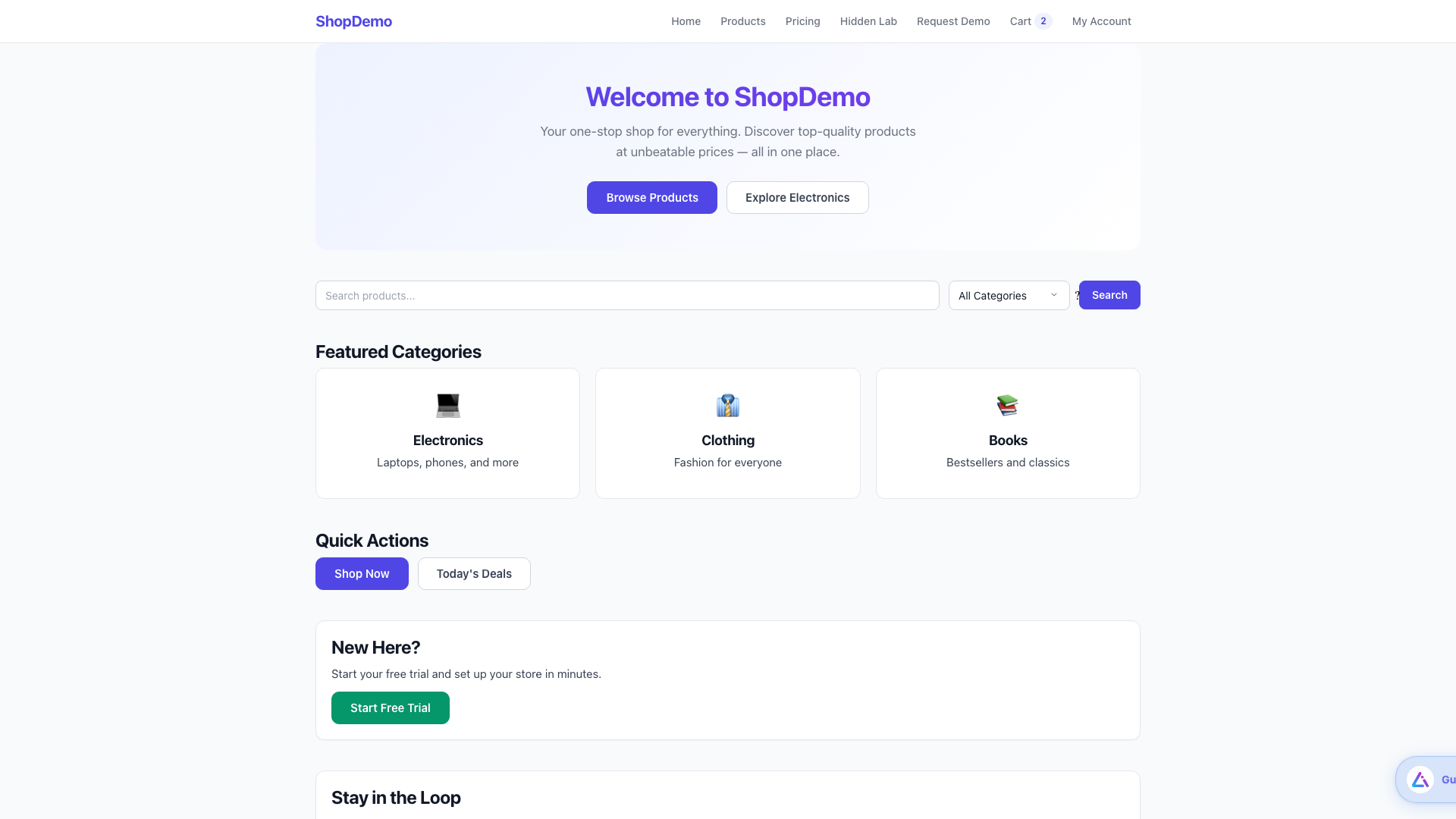
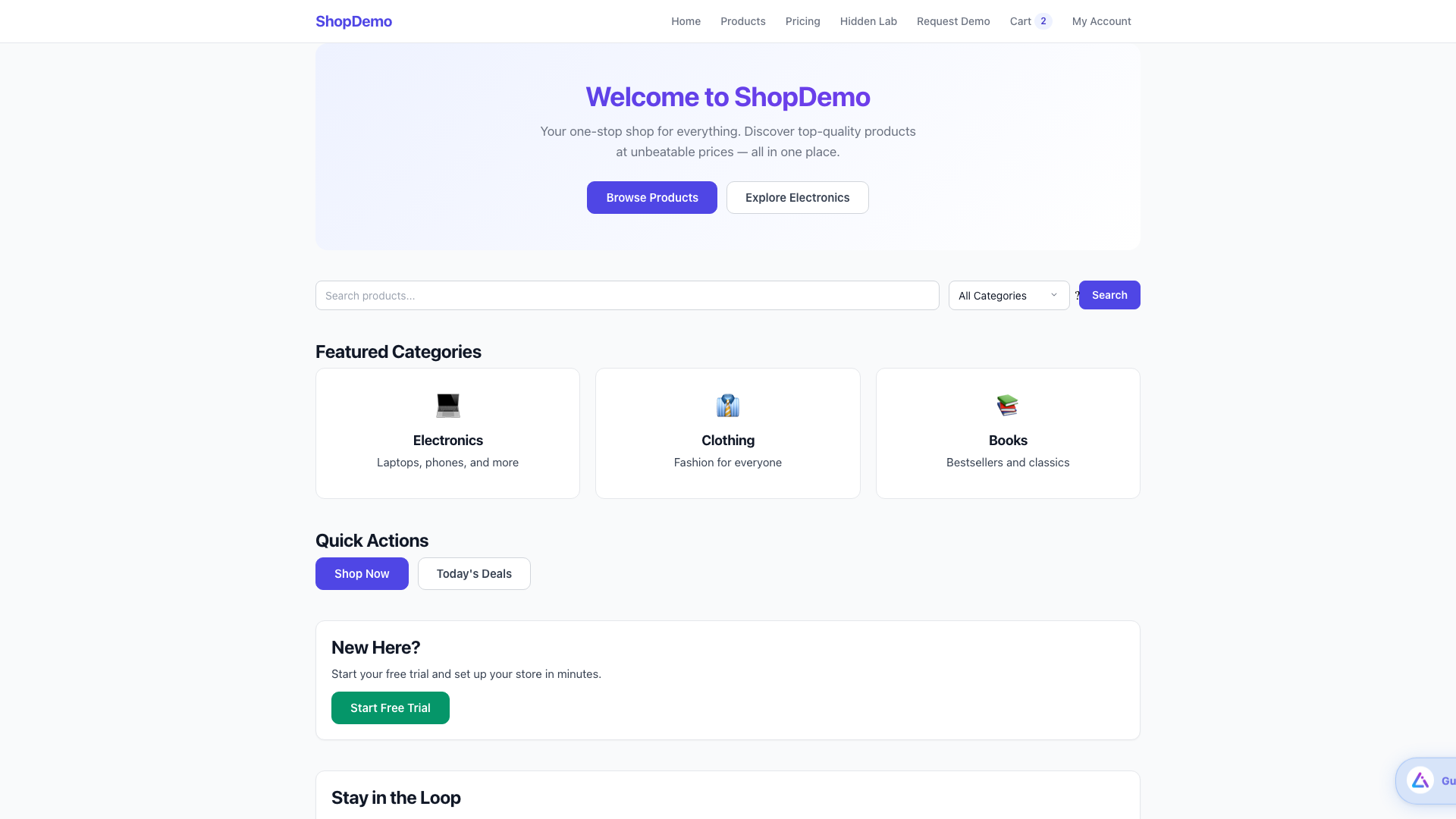
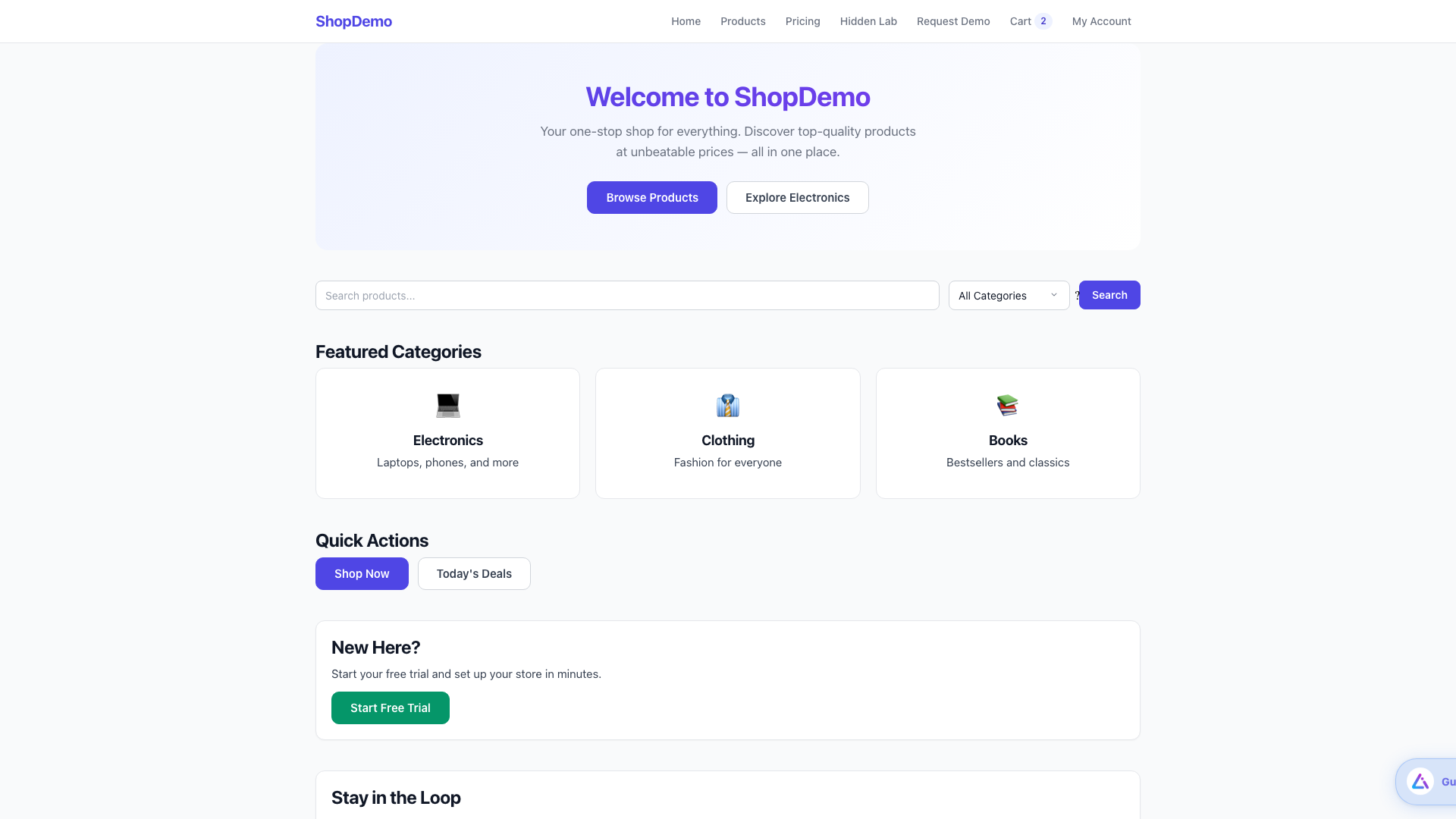
A published guide running live — tooltip highlighting a UI element with step navigation.
Browser CopilotFull SDK only
The Browser Copilot is an AI assistant that lives in your product. It uses RAG with your scanned knowledge base to answer questions, generate walkthroughs on-the-fly, and execute copilot tool calls. This feature requires the Full SDK (guideai.js).
Browser Copilot Setup & Demo
Setting up the Browser Copilot — configure knowledge base, customize appearance, and see it answer user questions in real-time.
TODO: Record and upload video, then replace videoIdSetting up the Browser Copilot — configure knowledge base, customize appearance, and see it answer user questions in real-time.
How it works
1. The scanner uploads your codebase structure to build a knowledge base of routes and elements.
2. When a user asks a question, the SDK captures a page snapshot (URL, visible text, form labels, viewport) and sends it to the backend.
3. The backend LLM uses RAG to find relevant context from the knowledge base and generates an answer.
4. If a walkthrough is appropriate, the LLM generates guide steps that the SDK renders as an ephemeral guide.
5. Optional copilot tools allow the AI to execute data queries and actions on behalf of the user (with confirmation for destructive actions).
Enabling the copilot
The copilot is enabled by default when the bubble is active. Users click the bubble to open the chat interface.
<!-- Copilot enabled by default with bubble -->
<script
  src="https://cdn.3guideai.com/sdk/guideai.js"
  data-site-id="site_YOUR_SITE_ID"
  data-token="pk_live_YOUR_TOKEN"
  data-bubble-enabled="true"
  data-widget-mode="guide"
></script>
Widget modes
guide
Floating bubble, AI chat on click (default).
support
Fixed bubble, live agent support on click.
combined
Both AI chat and live support in tabs.
The Browser Copilot answering a user question with step-by-step instructions.
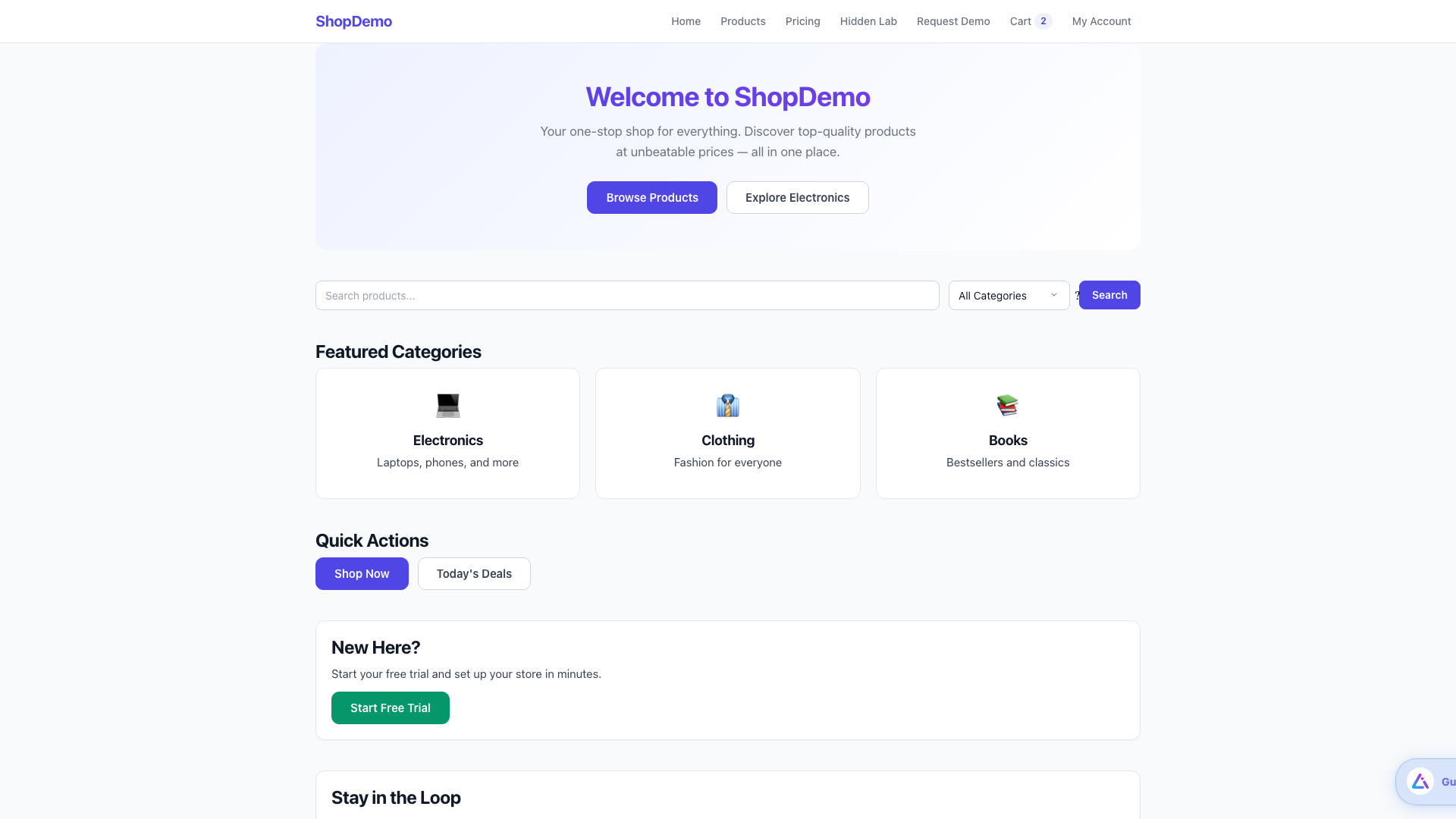
Copilot generating an on-the-fly walkthrough from a natural language question.
Friction AnalyticsTracking SDK
Friction Analytics automatically detects user frustration. This is available in the Tracking SDK (guideai-tracking.js). All 15 detection modules track interactions, errors, and performance without any additional configuration.
Friction Analytics Walkthrough
Understanding the analytics dashboard — friction detection, funnel analysis, and AI recommendations.
TODO: Record and upload video, then replace videoIdUnderstanding the analytics dashboard — friction detection, funnel analysis, and AI recommendations.
Auto-detected friction signals
Rage clicks
3+ rapid clicks on the same non-button element in 1 second.
Dead clicks
Clicks on elements that produce no DOM response.
Form abandonment
Users leaving forms without submitting.
Form errors
Validation errors causing user frustration.
JavaScript errors
Uncaught exceptions with full stack traces.
Network errors
Failed HTTP requests and timeouts.
Performance issues
Web Vitals violations and long tasks.
Navigation loops
Users going back and forth between pages.
Detection modules
The SDK includes 15 detection and tracking modules that run automatically:
Enabling session recording
Session recording is part of the Tracking SDK.
<script
  src="https://cdn.3guideai.com/sdk/guideai-tracking.js"
  data-site-id="site_YOUR_SITE_ID"
  data-token="pk_live_YOUR_TOKEN"
  data-recording="true"
></script>
Custom event tracking
// Track custom events
window.guideai.track("checkout_started", {
  cart_value: 99.99,
  item_count: 3,
});

// Track feature usage
window.guideai.trackFeature("dark_mode", "Toggled Dark Mode");

// Mark feature as used (for audience targeting)
window.guideai.markFeature("used_export");
Friction Analytics dashboard — heatmap showing rage clicks and dead click zones.
Funnel analysis showing drop-off points with AI-generated recommendations.
Visual Showcase
Every aspect of 3Guide is configurable. Below is a visual reference of all the different setups, icons, animations, themes, and guide types available. Bubble, guide, and copilot visuals apply to the Full SDK. Theming and announcements apply to the Tracking SDK.
Bubble icons
Choose from 7 built-in mascot icons, or provide a custom image URL (GIF/PNG) via data-bubble-image.
<!-- Set the bubble icon -->
<script
  src="https://cdn.3guideai.com/sdk/guideai.js"
  data-site-id="site_YOUR_ID"
  data-token="pk_live_YOUR_TOKEN"
  data-bubble-icon="owl"
></script>

<!-- Or use a custom image -->
<script
  src="https://cdn.3guideai.com/sdk/guideai.js"
  data-site-id="site_YOUR_ID"
  data-token="pk_live_YOUR_TOKEN"
  data-bubble-image="https://yoursite.com/mascot.gif"
></script>
Bubble positions
Position the floating bubble in the corner that works best for your layout.
data-bubble-position="bottom-right"  <!-- default -->
data-bubble-position="bottom-left"
Bubble animation modes
Two animation styles control how the bubble moves on screen.
Smooth spring-physics float
Constrained to viewport
Slow cardinal-point motion
"Ant walk" along viewport edges
Pauses at corners
Persistent speech bubbles
<!-- Drift mode (default) -->
data-bubble-mode="drift"

<!-- Crawl mode (ant walk along edges) -->
data-bubble-mode="crawl"

<!-- Drift fine-tuning -->
data-bubble-drift-spring="0.0003"
data-bubble-drift-damping="0.993"
data-bubble-drift-min-interval="18000"
data-bubble-drift-max-interval="26000"

<!-- Crawl fine-tuning -->
data-bubble-crawl-speed="40"
data-bubble-crawl-climb-walls="true"
data-bubble-crawl-corner-pause-ms="1500"
data-bubble-crawl-persistent-speech="true"
data-bubble-crawl-message-interval-ms="8000"
Widget modes
Control what happens when users click the bubble.
AI chat + guide playback
- AI chat assistant
- Guide suggestions
- Walkthrough generation
- Knowledge base Q&A
data-widget-mode="guide"Live agent support
- Live agent chat
- Ticket creation
- Support queue
- Agent handoff
data-widget-mode="support"Both AI + live support
- Tabbed interface
- AI chat tab
- Support tab
- Smart escalation
data-widget-mode="combined"Theming
Customize the look of guides, tooltips, and chat panels to match your brand.
Click the button below to get started with your first task.
Click the button below to get started with your first task.
Click the button below to get started with your first task.
<!-- Custom theme (Full SDK) -->
<script
  src="https://cdn.3guideai.com/sdk/guideai.js"
  data-site-id="site_YOUR_ID"
  data-token="pk_live_YOUR_TOKEN"
  data-theme-primary="#0ea5e9"
  data-theme-background="#f8fafc"
  data-theme-text="#0f172a"
  data-theme-font="Plus Jakarta Sans"
></script>

<!-- Custom theme (Tracking SDK) -->
<script
  src="https://cdn.3guideai.com/sdk/guideai-tracking.js"
  data-site-id="site_YOUR_ID"
  data-token="pk_live_YOUR_TOKEN"
  data-theme-primary="#0ea5e9"
  data-theme-background="#f8fafc"
  data-theme-text="#0f172a"
  data-theme-font="Plus Jakarta Sans"
></script>
Guide step types
Four distinct step types for different interaction patterns.
Click Save
Save your changes before continuing.
Welcome!
Let us show you around the new dashboard.
Setup Guide
Complete these steps to finish setup.
Announcement surfaces
Three ways to display in-app announcements.
data-announcement-surface="modal"   <!-- centered overlay (default) -->
data-announcement-surface="banner"  <!-- top banner strip -->
data-announcement-surface="drawer"  <!-- bottom sheet -->

data-announcement-frequency="once"             <!-- show once ever -->
data-announcement-frequency="once_per_session" <!-- once per session -->
data-announcement-frequency="once_per_day"     <!-- daily -->
data-announcement-frequency="every_visit"      <!-- every page load -->

data-announcement-display-mode="auto"    <!-- show immediately -->
data-announcement-display-mode="beacon"  <!-- show pulsing dot first -->
Complete configuration example
Every attribute combined in a single script tag:
<script
  src="https://cdn.3guideai.com/sdk/guideai.js"

  <!-- Required -->
  data-site-id="site_abc123"
  data-token="pk_live_xyz789"

  <!-- Endpoints -->
  data-api-url="https://api.3guideai.com"
  data-cdn-url="https://cdn.3guideai.com"

  <!-- Bubble appearance -->
  data-bubble-enabled="true"
  data-bubble-position="bottom-right"
  data-bubble-icon="owl"
  data-bubble-label="Help"
  data-bubble-mode="drift"
  data-widget-mode="combined"

  <!-- Drift fine-tuning -->
  data-bubble-drift-spring="0.0003"
  data-bubble-drift-damping="0.993"
  data-bubble-drift-min-interval="18000"
  data-bubble-drift-max-interval="26000"
  data-bubble-drift-enabled="true"

  <!-- Theme -->
  data-theme-primary="#7c3aed"
  data-theme-background="#ffffff"
  data-theme-text="#111827"
  data-theme-font="Inter"

  <!-- Guides -->
  data-guides-enabled="true"
  data-auto-advance-on-target-click="true"
  data-feedback-auto-prompt="true"
  data-feedback-prompt-delay-ms="300000"
  data-feedback-prompt-min-pageviews="10"
  data-chip-dismiss-seconds="300"

  <!-- Analytics & session -->
  data-recording="true"
  data-idle-timeout="20000"
  data-session-timeout-ms="1800000"
  data-batch-size="50"
  data-batch-interval-ms="30000"
  data-geolocation="off"

  <!-- Announcements -->
  data-announcement-surface="modal"
  data-announcement-frequency="once"
  data-announcement-display-mode="auto"
  data-announcement-auto-show-delay-ms="500"
  data-announcement-close-on-backdrop="true"

  <!-- Help hints -->
  data-help-hints="true"
  data-help-hints-cache-ttl-ms="86400000"
></script>
Side-by-side comparison of all bubble modes, positions, and themes in action.
Customization & Theming Guide
Full walkthrough of all visual customization options — bubble icons, animations, themes, step types, and announcements.
TODO: Record and upload video, then replace videoIdFull walkthrough of all visual customization options — bubble icons, animations, themes, step types, and announcements.